How to add a secondary WAN First, ensure that the device has either purchased the VLAN license or has an active Prime Care warranty. Without either one of these, you will not be able to proceed.
The second step is to log in to the device locally or remotely through the InControl2 web admin. After that, it’s required to ensure the VLAN is visible in the dashboard and should appear as such.
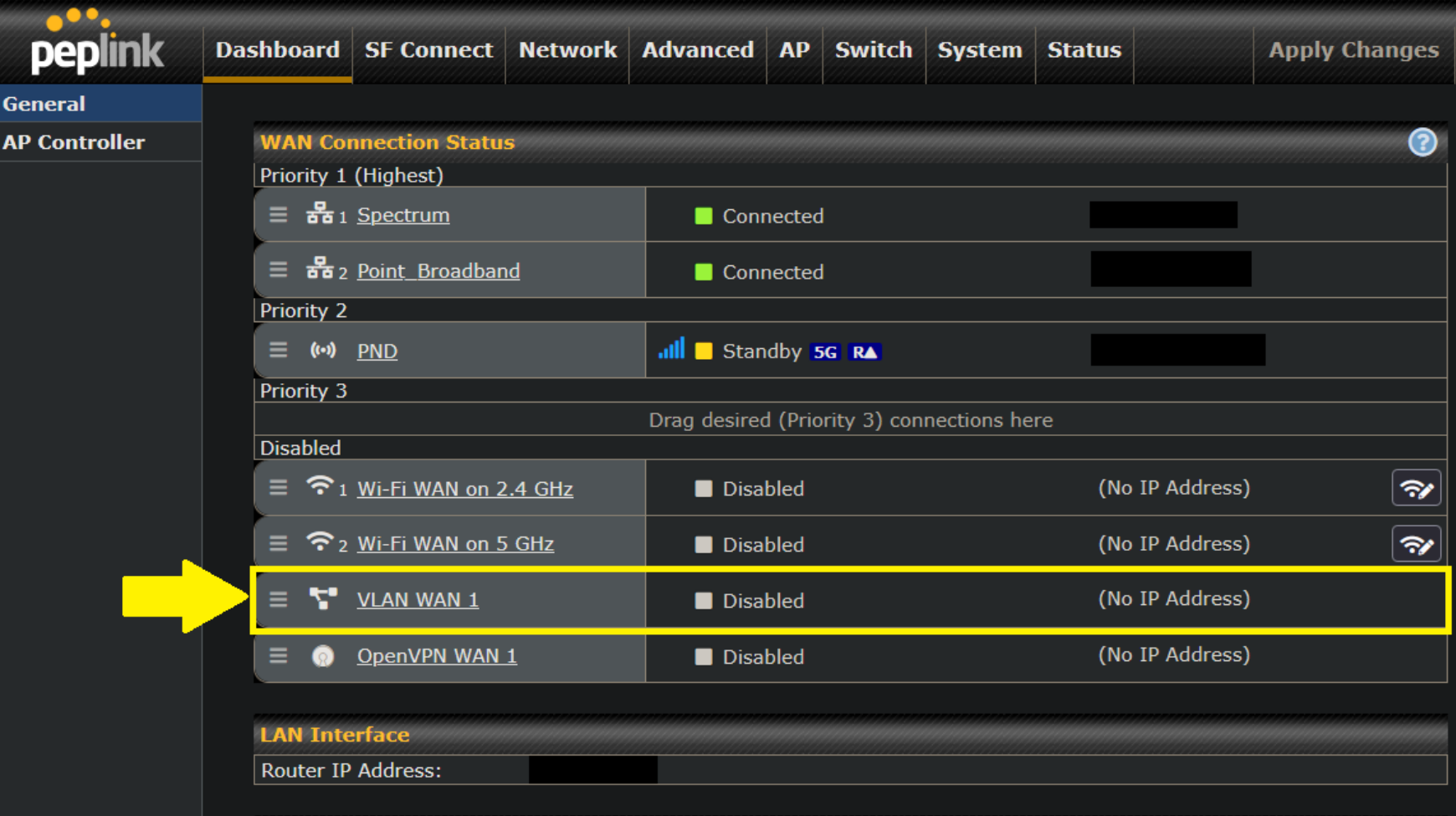
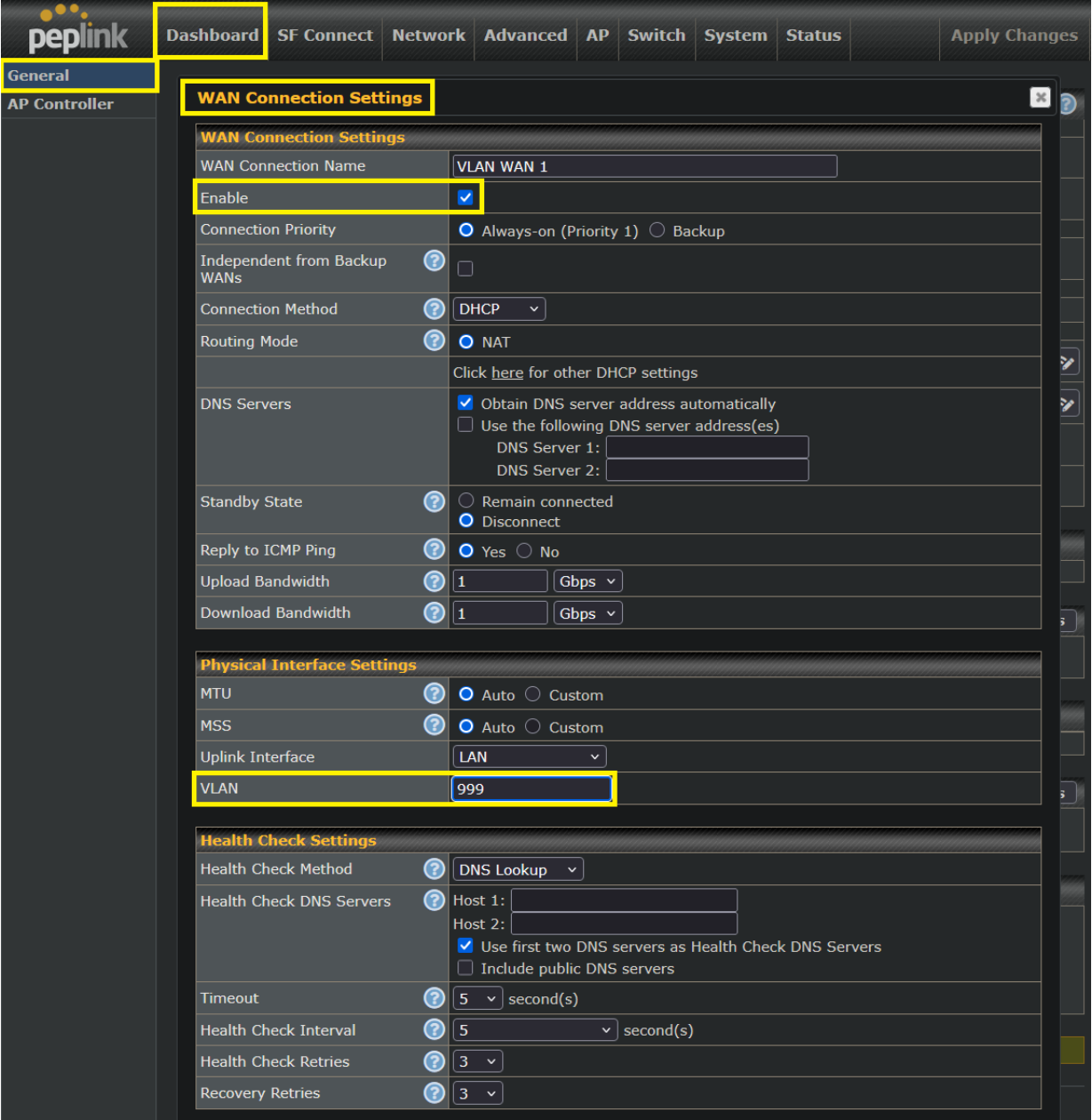
The third step would be to enable VLAN WAN 1 and change the up Physical Interface Settings – Uplink Interface to LAN. The most important part would also be to change the VLAN# as well.
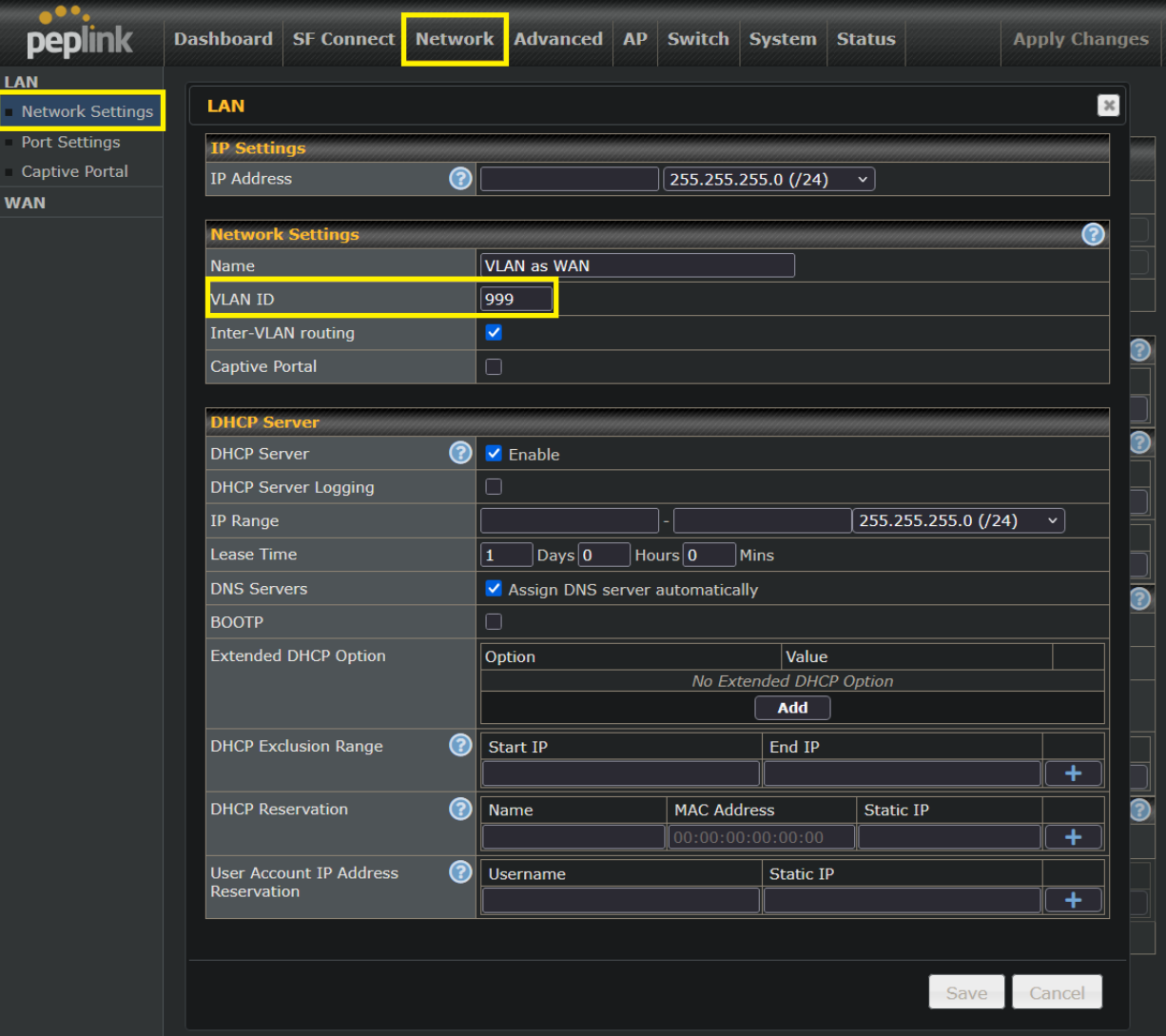
The fourth Step is to make sure that the VLAN is configured inside of the network tab. Without this, the traffic will never be passed. This VLAN value can be any number if it’s not the same as another that is already on the network.
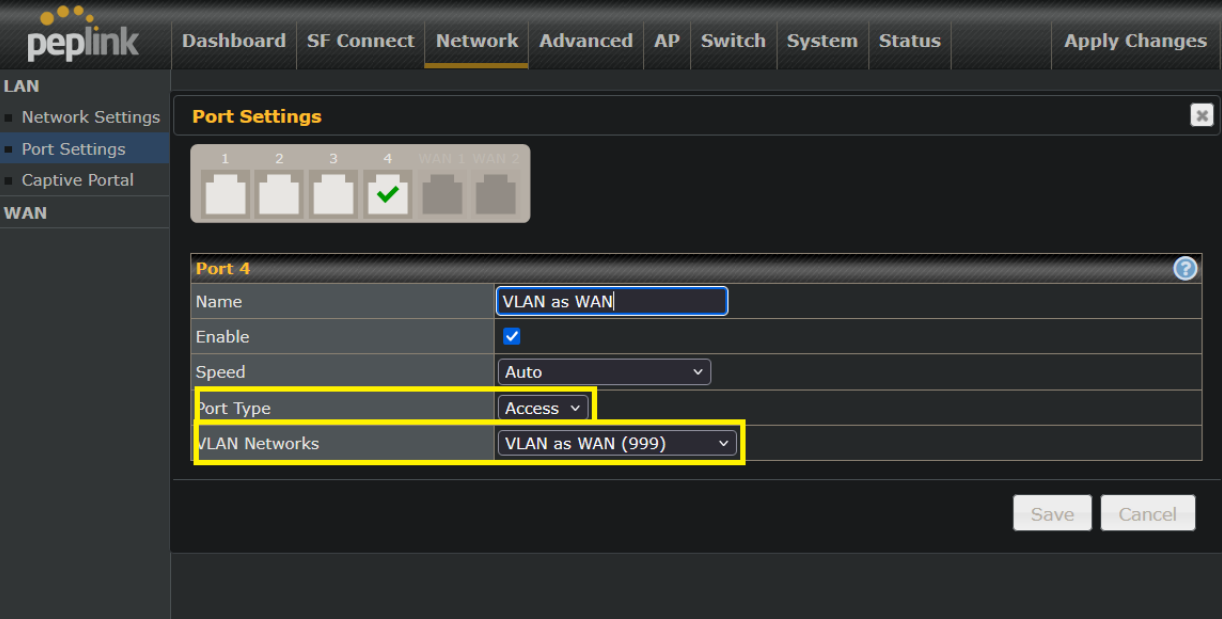
The last step is to change the port type from trunk to access. This is done by navigating to the network tab of the device, selecting the active port to which the cable is plugged, and changing the VLAN to the corresponding number. Additionally, change the port type to Access, as shown below.
Was this article helpful?
That’s Great!
Thank you for your feedback
Sorry! We couldn't be helpful
Thank you for your feedback
Feedback sent
We appreciate your effort and will try to fix the article